Step by Step Guide to Create a Google Review QR Code
Easily generate a Google review QR code with our step-by-step guide. Enhance customer feedback and boost your online reputation today!

Google review QR codes are essential for enhancing your business's online reputation. Did you know that 93% of people are influenced by online reviews when making purchases? This highlights the importance of making it easy for customers to leave reviews. By learning how to generate Google review QR code, you can facilitate the feedback process for your customers. Here are some benefits of using Google review QR codes:
- They simplify the review process.
- They help you gather more reviews.
- They enhance your visibility in local search results.
With QR codes strategically placed, you can encourage customers to share their experiences effortlessly.
Key Takeaways
- Google review QR codes help customers give feedback. This improves your business's online reputation.
- Put your QR codes in places where people can see them, like store entrances and tables. This encourages customers to engage.
- Make your QR code unique by adding your logo and colors. This helps people recognize and trust your brand.
Generate Google Review QR Code

Step 1: Access Your Google Business Profile
To make your Google review QR code, start by getting to your Google Business Profile. This profile is important because it helps you manage your business info and talk to customers. Here’s how to get to it:
- Log in to your Google Business Profile.
- Click on the "Ask for reviews" section.
- Share the link using Email, WhatsApp, or Facebook.
- Or, copy and paste the link from the Review link box.
- If you want, download the QR code by right-clicking on the image and saving it.
Having a Google review link is very important for your business. It shows proof that makes new customers feel safe. A lot of good reviews mean your business is trustworthy and cares about customers. Also, Google looks at reviews when ranking local businesses. This means businesses with many good reviews show up more in local searches. Responding to reviews helps you build better relationships with customers, making them feel appreciated.
Step 2: Create Your Review Link
Now that you have your Google Business Profile, it’s time to make your review link. Follow these steps:
- Log into Google Business Profile Manager.
- Pick the business you want to create a review link for and click 'See your profile.'
- Scroll down and choose 'Ask for reviews' to get your special link.
- You can also use the Place ID Finder tool by typing your business name to find your Place ID.
- Make your review link using this format: https://search.google.com/local/writereview?placeid=YOUR_PLACE_ID.
You can also search for your business on Google Maps, click 'Share,' and copy the link. Another way is to go to the Google Business Profile dashboard, click 'Get more reviews,' and copy the short URL.
The Google Place Finder Tool is a useful way to get your Place ID. Here’s how it works:
- Enter Your Business Name: Start by typing your business name into the tool. Make sure to pick the right listing from the suggestions.
- Generate the Link: After you select your business, click the button to create your unique review link and your Google Business Place ID.
- Share the Link: Now that you have your link, you can share it with your customers.
By following these steps, you’ll have a working Google review link ready to share with your customers. This link will help them leave reviews easily, improving your online reputation.
Do this faster
HiFiveStar drafts a reply to any review in seconds — so your profile always looks cared for.
Use a QR Code for Google Reviews
Step 3: Choose a QR Code Generator
Now that you have your Google review link, it’s time to make a QR code for Google reviews. Picking the right QR code generator is very important. Here are some popular choices you can look at:
| QR Code Generator | Key Features |
|---|---|
| ViralQR | Custom designs, export options (SVG, PNG, JPEG), QR code insights, folder management, unlimited storage, flexible codes |
| QRStuff | Direct link to review page, quick feedback collection, better customer engagement, more reviews, improved local SEO |
| Me-QR | Trackable QR codes, unlimited scans, bulk QR code creation, different QR code types |
When choosing a QR code generator, remember these points:
| Criteria | Description |
|---|---|
| Ease of use | A simple interface with clear instructions and easy navigation. |
| Customization options | Ability to change QR codes with colors, shapes, and logos for better brand recognition. |
| Tracking and analytics | Gives insights into scan performance, helping to improve marketing strategies. |
| Security | High security standards to protect user data and ensure safe landing pages. |
| Cost-effectiveness | Fair pricing without losing features, ensuring good value for your money. |
Step 4: Customize and Download Your QR Code
Once you’ve picked a QR code generator, it’s time to customize your QR code for branding. Customizing can really boost customer trust and engagement. Here are some features you can use:
| Customization Feature | Description |
|---|---|
| Logos | Add your business logo to the QR code for brand recognition. |
| Colors | Change the QR code colors to match your brand. |
| Captions | Add a caption like 'Scan to Review Us!' for clarity. |
To download your Google review QR code, follow these steps:
- Make an account on your chosen QR code generator.
- Click to create a new QR code.
- Choose the type of QR code you want, usually a dynamic link.
- Paste your Google review link into the right field.
- Customize your QR code with your logo, colors, and captions.
- Download the QR code in your favorite format (SVG, PNG, etc.).
After downloading, test your QR code to make sure it goes to the right Google review link. This simple step can help you avoid problems when customers scan the code.
By customizing your QR code for reviews, you make it look good and strengthen your brand identity. This can lead to more customer trust and engagement, making it easier for customers to leave their feedback.
Best Practices for Google Business QR Code
Placement Strategies
To make your Google Business QR code easy to see, think about these good placement ideas:
- Storefronts and Entrances: Put your QR code in clear spots like your storefront or entrance. This way, customers notice it when they arrive.
- Product Labels: Add QR codes to product labels. This gives quick info about the product.
- Event Tickets: If you have events, put the QR code on tickets. This can make the event more fun for attendees.
- Staff Training: Teach your staff to tell customers about the QR codes. They can show how to use them and why they matter for leaving reviews.
These ideas help you add the QR code for Google reviews into your customer experience, making it easier for them to engage.
Encouraging Customer Feedback
Getting customers to leave reviews can really help your business. Here are some ways to encourage feedback:
| Strategy | Description |
|---|---|
| Delight customers | Give great service that goes beyond what they expect. Happy customers are more likely to share their stories. |
| Make it easy | Provide clear steps and direct links for leaving reviews. Make your QR code big enough to see. |
| Prompt politely | After good experiences, kindly ask for reviews through email or in person. |
| Give discounts and offers | Think about giving small rewards for leaving reviews, while following Google’s rules. |
| Ask at the right time | Timing is important! Ask for reviews right after a great experience. |
| Show appreciation | A simple “thank you” in follow-up emails can really matter. |
| Highlight existing reviews | Show off positive reviews to encourage others to join in. People like to be part of the trend. |
By using these ideas, you can build a culture of feedback that helps your business and improves your online reputation.
Where to Use Your Google Review QR Code
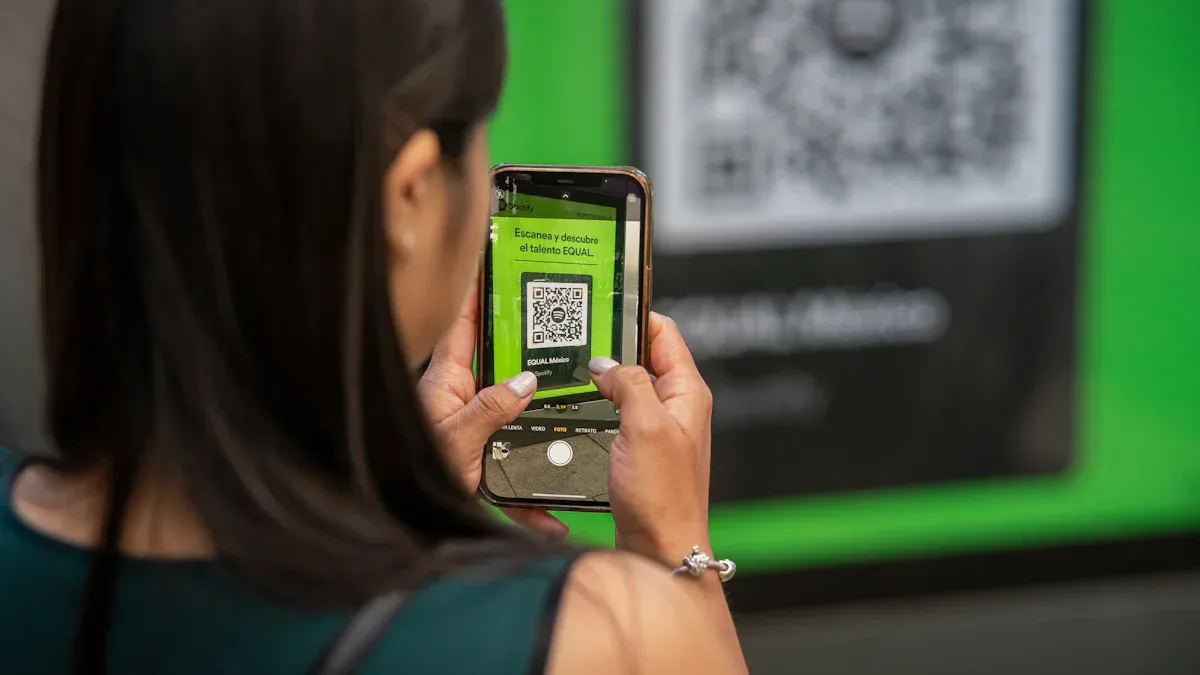
In-Store Displays
You can put your Google business QR code in different places in your store. This helps more people see it and gives customers a chance to share their thoughts. Here are some good ways to do this:
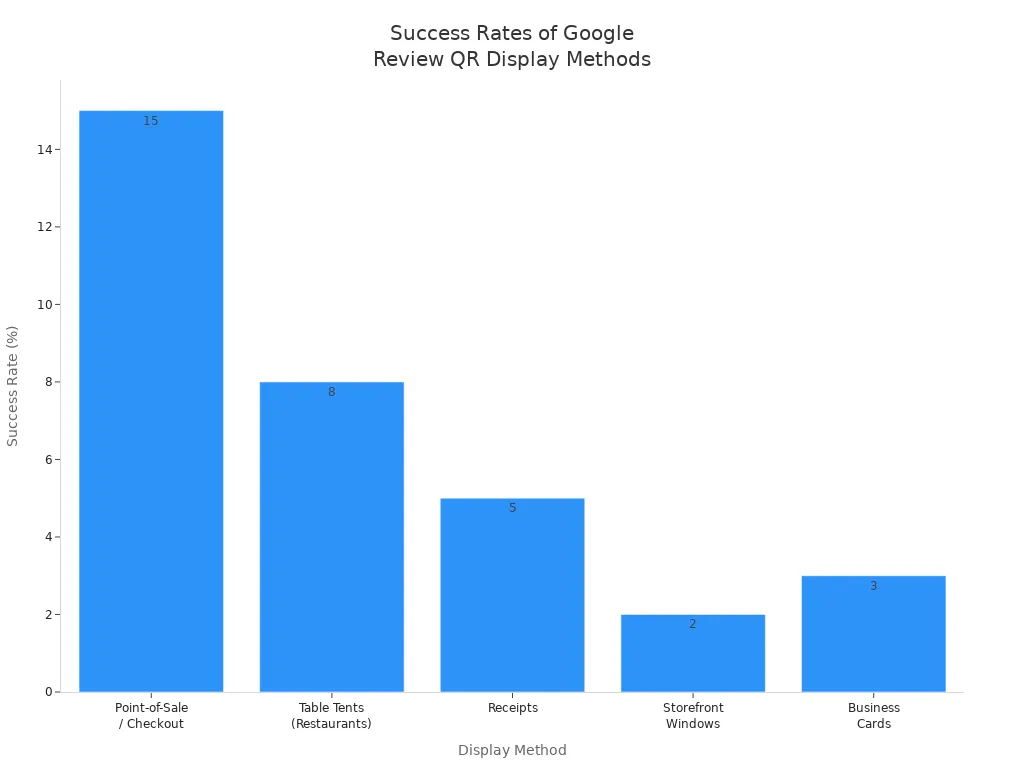
| Display Method | Success Rate | Placement | Format | Why it Works |
|---|---|---|---|---|
| Point-of-Sale / Checkout | 15-20% | Eye level (3-5 feet high) | Table tent (5×7 inches) | Customers stop here, use phones for payment, and feel happy at this moment. |
| Table Tents (Restaurants) | 8-12% | On every table | Fold-over card stock (4×6) | Customers stay at the table and see it while eating. |
| Receipts | 5-8% | Printed at bottom of receipt | 2×2 cm minimum size | Customers keep receipts and can scan them later at home. |
| Storefront Windows | 2-4% | Lower third of window | 8×8 inches or larger | It catches the attention of people walking by and those waiting outside. |
| Business Cards | 3-5% | Back of card | 1×1 inch minimum | Helps you connect with others and gives more value than just contact info. |
Digital Marketing Materials
You can also add your QR code for Google reviews to different digital marketing materials. Here are some examples:
| Marketing Material Type | Example Use Case |
|---|---|
| Bookmarks | Place next to popular book displays in a bookstore for easy scanning. |
| Flyers | Add QR codes to get feedback from customers. |
| Business Cards | Include QR codes for quick access to Google reviews after service. |
| Takeout Menus | QR codes let customers leave feedback after their meal. |
| Promotional Emails | QR codes in emails help customers leave reviews for online shops. |
| Social Media Posts | Use QR codes to connect with customers and gather reviews. |
Using a Google review link in these materials makes it easy for customers to leave feedback. They won’t have to search for your business. This convenience means you are more likely to get reviews, which helps build trust with new customers.
By placing your Google business QR code in both physical and digital areas, you boost customer engagement and improve your online reputation.
Using Google review QR codes is an easy way to improve your business's online reputation. They help customers leave reviews quickly. This can lead to more feedback and higher local search rankings. With HiFiveStar, you make managing reviews easier. You get quick access to customer insights and can track engagement well. Talking with customers through reviews builds trust and loyalty. This helps your business grow.
FAQ
What is a Google review QR code?
A Google review QR code is a scannable code that directs customers to your Google review page, making it easy for them to leave reviews.
How can I track reviews generated from my QR code?
You can use analytics tools provided by your QR code generator to track how many scans and reviews you receive from your QR code.
Can I customize my QR code?
Yes! Most QR code generators allow you to customize colors, add logos, and include captions to match your brand.



Ready to Take Control of Your Online Reputation?
Join thousands of local businesses using HiFiveStar to get more reviews and grow faster.