How to Get Your Google My Business Review Link (Desktop, Mobile & QR Code)
Get your Google My Business review link in 2 minutes. Covers desktop, mobile, QR code & Place ID methods — plus what to do if your GMB review link breaks.

Your Google My Business review link is a direct URL that sends customers straight to your Google review form — no searching, no extra navigation required. You can get it from your Google Business Profile in under 2 minutes on desktop or mobile. This guide covers every method for finding and sharing your Google My Business review link: the desktop Business Profile dashboard, the Google Maps mobile app, QR codes, and the permanent Place ID method. On Pro, HiFiveStar can also automate the process, acting as your Google My Business review link generator and sending timed review requests after each customer visit.
What Is a Google My Business Review Link?
A Google My Business review link is a direct URL that takes customers straight to your Google review form — no searching, no browsing to your listing required. When someone clicks it, they land on a page where they can immediately give you a star rating and leave a written review.
Every business that has a verified Google Business Profile (previously Google My Business) gets one of these links. You can share it by email, text message, QR code, or anywhere else customers can click it. The link is unique to your specific business location; if you have multiple locations, each one has its own review link.
Why it matters: Google reviews are one of the most influential local SEO ranking factors. The more reviews you collect — and the easier you make it for customers to leave them — the more your business stands out in local search and on Google Maps.
Key Takeaways
- You can get your Google review link fast. Log into your Google Business Profile on your computer or phone. Copy the link from the 'Ask for reviews' or 'Share review form' button.
- You can share your review link in many ways. Send it by email, text, or on social media. You can also make a QR code. This helps customers leave reviews quickly. Good reviews help your business look better.
- You can use tools like HiFiveStar to send review requests, and set them to go automatically on Pro. These tools help you manage many locations. You can also track reviews in one place. This helps your business grow with good feedback.
Do this faster
HiFiveStar drafts a reply to any review in seconds — so your profile always looks cared for.
Get Your Google Review Link Fast
Getting your google review link does not have to be hard. You can do it in just a few minutes. You only need your google business profile and a few clicks. Let’s walk through the steps for both desktop and mobile. You will also see how to make a QR code for your google reviews link. This way, you can share your review link with customers anywhere.
Google Business Profile (Desktop)
You can use your computer to get your google review link fast. Here’s how you do it:
- Open your browser and go to google.com.
- Sign in with the account you use for your business.
- Type your business name into the google search bar.
- You will see your google business profile on the right side of the page.
- Look for the button that says “Ask for reviews.” Click it.
- A box will pop up with your google review link.
- Click “Copy link.” Now you have your review link ready to share.
Tip: Save your google reviews link in a safe place. You can use it again and again to ask for more google reviews.
You can now send this google review link to your customers. When they click it, they go straight to your google review page. This makes it easy for them to leave a review.
Google Business Profile (Mobile)
You can also get your google review link on your phone. The steps are simple:
- Open the Google Maps app on your phone.
- Make sure you are signed in with your business account.
- Tap your profile picture at the top right.
- Tap “Your Business Profile.”
- Choose the business you want to manage.
- Tap “Customers,” then tap “Reviews.”
- Tap “Share review form.”
- You will see your google review link. Tap “Copy” to save it.
Now you can paste your google reviews link into a text, email, or anywhere you want. Your customers will find it easy to leave a review for your business.
Note: If you manage more than one business, make sure you pick the right google business profile before you copy the review link.
QR Code for Google Review Link
Want to make it even easier for your customers? You can turn your google review link into a QR code. This lets people scan and go straight to your google review page.
Here’s how you can create a link as a QR code:
- Copy your google review link from your google business profile.
- Go to a free QR code generator online.
- Paste your review link into the box.
- Click “Create QR Code.”
- Download the QR code image.
You can print this QR code and put it at your checkout, on receipts, or on your business cards. When customers scan it, they go right to your google reviews link. This helps you get more google reviews without any extra steps.
Pro Tip: Add your QR code to your website or social media. This way, you reach even more people and make it easy for them to leave a review.
You now know how to create a link for your google reviews, copy your google review link, and even make a QR code. These steps help you collect more reviews and grow your business. If you want to generate google reviews even faster, tools like HiFiveStar can help you automate the process on Pro and manage every review link in one place.
Alternative Google Review Link Generators
Sometimes you might not have direct access to your Google Business Profile dashboard. Don’t worry! You still have a few easy ways to use a google my business review link generator. Let’s look at some quick methods you can try.
Google Search Method
You can use Google Search as a simple google my business review link generator. Just type your business name into Google. If your business pops up on the right side, look for the “Write a review” button. Right-click on it and copy the link address. This link works as your google my business review link generator. You can now share this link with your customers. It’s a fast way to generate review links without logging into your dashboard.
Tip: Always test your link before sharing it. Make sure it takes people straight to your Google review page.
Google Place ID Finder
Google also offers a tool called the Place ID Finder. This tool acts as another google my business review link generator. Go to the Google Place ID Finder page. Type your business name or address. Click on your business when it appears. You will see a Place ID. Use this ID in a special URL format to create your google review link. This method helps you generate review links even if you can’t find your business in search.
Third-Party Review Link Generators
If you want something even easier, try a third-party google my business review link generator. Many free online tools let you paste your business name or address. The generator will create your google review link for you. These tools are great if you want to save time or manage links for more than one location.
Using a google my business review link generator can help you collect more reviews and boost your business’s reputation.
Building Your Google Review Link with a Place ID
Your Place ID is a permanent identifier Google assigns to every business listing. Once you have it, you can build a direct review link yourself — no need to log into your dashboard every time.
The URL format looks like this:
https://search.google.com/local/writereview?placeid=YOUR_PLACE_ID
Replace YOUR_PLACE_ID with the actual ID you found.
How to Find Your Place ID
There are two ways to get your Place ID.
Option 1 — Google Place ID Finder tool
- Go to the Google Place ID Finder.
- Type your business name or address in the search box.
- Click your business when it appears on the map.
- The Place ID appears in a small box below the business name. It typically starts with
ChIJfollowed by a string of letters and numbers. - Copy it, then build your link by replacing the placeholder in the URL template above.
Option 2 — Google Maps URL
- Open Google Maps and search for your business.
- Click your listing.
- Look at the URL in your browser address bar. The number after
?cid=is your Customer ID. You can use it in:https://maps.google.com/?cid=YOUR_CID.
Why Build a Link This Way?
The Place ID link doesn't expire or change unless your business listing gets merged or your address changes. That makes it ideal for long-term use. You can embed it in your website footer, add it to your email signature, print it on a receipt, and it'll keep working without any maintenance.
Worth knowing: If you ever move your business to a new address or Google merges your listing with a duplicate, your Place ID can change. Test your link a couple of times a year to catch this before customers do.
Shorten the Link for Everyday Use
A raw Place ID link looks something like https://search.google.com/local/writereview?placeid=ChIJN1t_tDeuEmsRUsoyG83frY4. It's long and not easy to put on printed materials. Use a free link shortener like Bit.ly or Rebrandly to create a branded short link — something like bit.ly/yourshopname-review. Short links fit on receipts and are much easier to say out loud at the checkout counter.
Share and Customize Your Google Reviews Link
Sharing Your Link (Email, SMS, Website, Social Media)
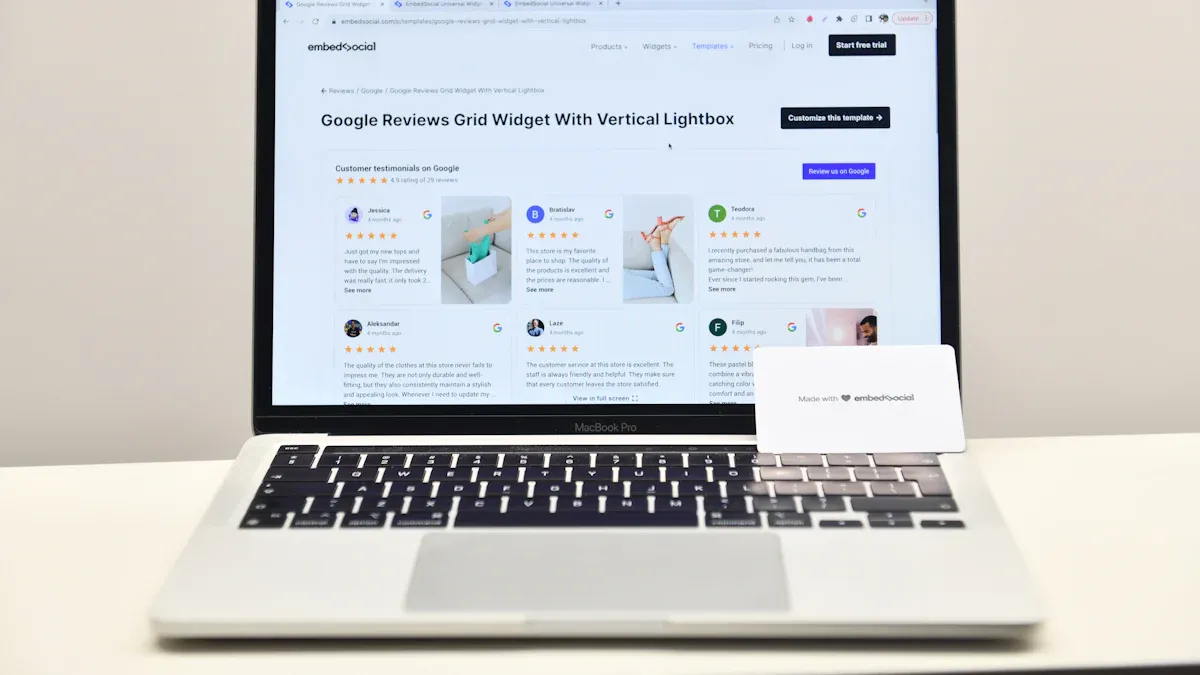
You want more people to leave reviews for your business. The fastest way is to share your google review link. You can send your google reviews link by email or text. You can also use WhatsApp to send it. Put your review link on your website or social media. Add your five-star review link to receipts or business cards. You can use a QR code so customers can scan it. This takes them right to your google reviews page. When your google reviews link is easy to find, you get more reviews. This helps people trust your business.
Tip: Remind customers to write a review after they visit. A short message can help you get more reviews.
Customized Google Review Link
You can make a custom google review link to share easier. Use a URL shortener like Bitly to make your long link short. This makes your google reviews link look neat and professional. You can add your business name to the link too. A custom google review link helps customers remember where to leave a review. It also looks good on social media and printed things.
HiFiveStar Review Management Tools
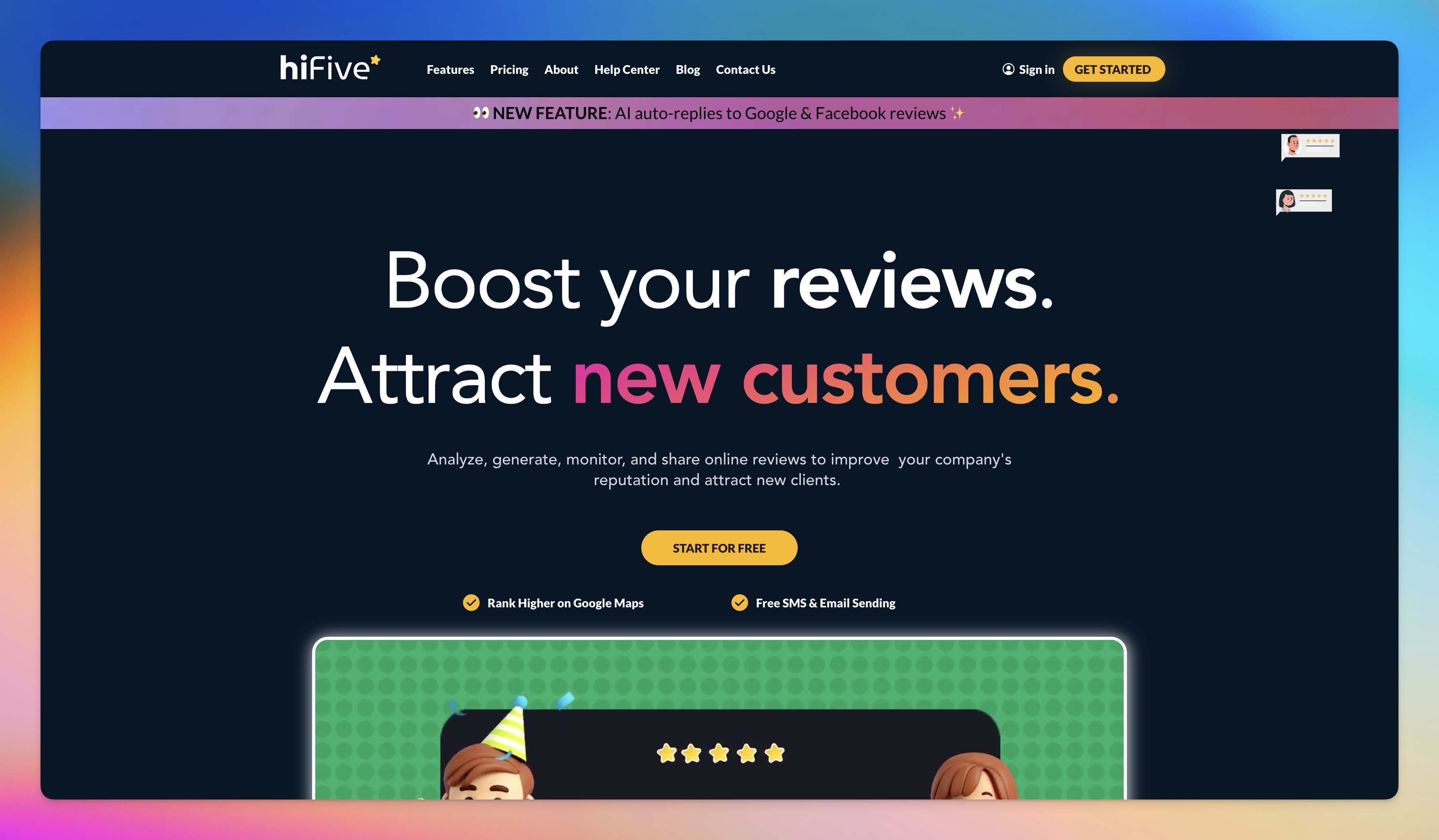
HiFiveStar lets you manage all your google review links in one spot. You can send review requests by email, text, or WhatsApp. The platform helps you track reviews from your google business profile and other sites. On Pro, HiFiveStar sends reminders so customers leave reviews. It helps you reply to good reviews quickly. You can show your five-star review link on your website and social media. HiFiveStar makes it easy to get more google reviews and grow your business with positive reviews.
When you share your google review link, you help your business stand out. More reviews mean more trust for your business. HiFiveStar lets you send review requests, track google reviews, and reply fast. You get easy tools, smart features, and many ways to connect. Ready to grow? Start managing your reviews today!
Troubleshooting Your Google Review Link
Even a simple google review link can occasionally cause headaches. Here are the most common problems and how to fix each one.
The Link Opens the Wrong Business
This happens when you manage multiple locations and copied the link from the wrong profile. Each location gets its own unique Place ID and review link. Sign back into Google Business Profile, confirm you've selected the correct location, and copy the link again.
Customers Say the Link Doesn't Work
When someone reports the link isn't working, a few things are usually to blame:
- Not signed into Google. Google requires an account to leave a review. If a customer clicks your link while logged out, they land on a sign-in page — and many close the tab there. Add a short note in your message: "Click the link and sign in with any Google account to get started."
- Already reviewed your business. Google allows only one review per person per business. If someone has reviewed you before, the form won't reappear.
- Account is too new. Google occasionally rejects reviews from very recently created accounts as a spam-prevention measure.
The Link Shows a "Not Found" Page
Check your Google Business Profile status first. If your profile has been suspended or flagged by Google, all links attached to it will stop working until the issue is resolved.
If the profile looks healthy, the most likely cause is a stale Place ID — this can happen after a business address change. Go back to your Google Business Profile dashboard, click "Ask for reviews," and copy a fresh link.
Your Review Count Doesn't Go Up After New Reviews
Google can take anywhere from a few hours to a couple of days to display newly submitted reviews publicly. If a customer says they left a review but you don't see it, wait 24–48 hours before worrying. Reviews can also be filtered by Google's spam detection and hidden from public view automatically.
Nobody Is Clicking the Link You Send
This usually isn't a link problem — it's a timing or message problem. The highest-converting review requests go out within 24 hours of a customer's visit, when the experience is still fresh. A specific message ("Hi Sam, we hope your visit went well yesterday — we'd love a moment of your feedback") gets far more clicks than a generic "please leave us a review."
On Pro, tools like HiFiveStar can handle this timing automatically, sending review requests right after a transaction so you're not doing it by hand.
Where to Put Your Google Review Link
Getting the link is the easy part. Where you put it — and when — determines how many customers actually follow through.
Email signatures are the most underused placement. One line at the bottom of every customer-facing email costs about five minutes to set up and reaches everyone you correspond with. People who are already emailing you are warmer leads than anyone you'd cold-contact.
Receipts and invoices: Add a short URL or QR code at the bottom. Printed receipts work, but emailed invoices work better because the link is clickable. A customer who just paid and is staring at their total is in exactly the right headspace.
Post-visit SMS: For restaurants, salons, and service businesses, a text within a few hours of a visit typically outperforms email on click rate. Keep it short: "Thanks for coming in today — if you have a moment: [link]." Nothing more needed.
Your website: A "Review us on Google" button in your footer or on a thank-you page catches visitors who are already engaged with you. It doesn't need to be prominent — it just needs to be findable. Customers who actively came to your site and liked what they saw are the ones who'll use it.
Table cards and counter signage: A QR code near the register or on a table card lets customers scan while they're still on location. That's the best moment you'll ever have — the experience is fresh and they haven't moved on to the next thing yet.
Social media: A quiet reminder once a quarter — "if you've visited us recently, we'd love your feedback" — is enough to jog people who meant to leave a review but never got around to it. Posting it every week turns it into noise.
Business cards: If you meet clients face-to-face, a QR code on the back of your card gives them the link without having to dig through a text thread later. Particularly useful for service providers, healthcare practices, and anyone who relies on referrals.
The common thread across all of these: place the link where the customer is immediately after a good experience. Later requests work, but the conversion rate drops off fast — and some customers who would've left five stars on day one just won't bother a week later.
Google My Business or Google Business Profile? The Name Changed, the Link Didn't
If you've been searching for your Google My Business review link, you may have noticed that Google has stopped using the "Google My Business" name. In 2022, Google rebranded the product from Google My Business (GMB) to Google Business Profile (GBP).
The name is new; the link works exactly the same way. When people search for a "google my business review link" today, they're looking for the same thing as someone searching "google business profile review link" — the direct URL to their review form.
Here's what changed and what stayed the same:
| What changed | What stayed the same |
|---|---|
| Product name: now "Google Business Profile" | The review link format and how to get it |
| The app: Google My Business app was discontinued | The Place ID and review URL structure |
| Management: now done via Google Search and Maps | Review link behavior for customers |
Bottom line: If your business used to show up under "Google My Business," it now appears under "Google Business Profile." Your review link is unchanged. The steps in this guide apply whether you call it GMB or GBP.
Frequently Asked Questions
How do you share your Google review link with customers?
You can copy your review link and send it by email, text, or WhatsApp. You can also post it on your website or social media.
Tip: Add your link to receipts or business cards for more reviews.
Can you use HiFiveStar with more than one location?
Yes! HiFiveStar lets you manage review links for many locations. You can track reviews and send requests for each spot from one dashboard, and reply on each review's site.
What if you forget your Google review link?
Just log into your Google Business Profile, find the "Ask for reviews" or "Share review form" button, and copy your link again. It only takes a minute. If you've saved a Place ID link somewhere, that works too — Place ID links don't expire unless your listing changes.
What is the correct URL format for a Google review link?
The two most common formats are:
- Dashboard short link: Something like
https://maps.app.goo.gl/XXXXXXX— the link Google gives you when you click "Ask for reviews" in your Business Profile. - Place ID link:
https://search.google.com/local/writereview?placeid=YOUR_PLACE_ID
Both send customers to the same review form. The Place ID version is better for permanent use — website embeds, printed materials, email signatures.
How many Google reviews do you need before a star rating appears publicly?
Google typically starts showing a star rating once a business has at least five reviews. Under that threshold, the rating may not appear in search results or on Google Maps. Those first few reviews are the hardest to collect — once your rating shows up publicly, it tends to attract more reviews on its own because customers see that others have shared feedback.
Is sending customers a review link against Google's guidelines?
No. Asking customers to leave a review is completely allowed. What Google prohibits is paying for reviews, offering discounts in exchange for reviews, or posting fake reviews. Sending a polite, personalized request with your google review link after a real customer interaction is fully within the rules.
Can you use the same review link for every customer?
Yes. Your google review link for a given location is the same for every customer. Copy it once and reuse it in emails, texts, QR codes, and printed materials indefinitely. The only time you'd need a new link is if your listing goes through a significant change — like a business address update or a Google-initiated listing merge.
What is a Google My Business review link, exactly?
A Google My Business review link (also called a Google Business Profile review link) is a unique URL tied to your specific business listing on Google. When a customer clicks it, they're taken directly to the star-rating and review form for your business — no need to search for your business name first. You can get it from your Business Profile dashboard under "Ask for reviews."
Is "Google My Business review link" the same as "Google Business Profile review link"?
Yes — they're the same thing. Google rebranded "Google My Business" (GMB) to "Google Business Profile" (GBP) in 2022, but the review link format, the way you find it, and how it works for customers is identical. If you have an existing GMB review link saved somewhere, it still works. Going forward you'll manage your listing through Google Search or Google Maps instead of the old Google My Business app.
How do I find my Google My Business review link if I've lost it?
Log in to the Google account connected to your business, go to Google Search, and type your business name. When your Business Profile panel appears on the right, click "Ask for reviews." A box with your Google My Business review link appears — copy it and save it somewhere permanent. Alternatively, build a link using your Place ID (see the Place ID section above) so you always have a stable version even if the dashboard link disappears.
How long does it take for a new review to appear on my Google Business Profile?
Google typically displays newly submitted reviews within a few hours, though it can take up to 48 hours in some cases. Reviews can also be held for moderation or filtered by Google's spam detection — this is more likely with reviews from very new accounts or those that use language patterns Google flags as suspicious. If a customer tells you they submitted a review but you don't see it after 48 hours, it may have been filtered automatically rather than posted.



Ready to Take Control of Your Online Reputation?
Join thousands of local businesses using HiFiveStar to get more reviews and grow faster.