Why Your Google Review Link Stops Working (and How to Fix)
Your Google review link stops working for several fixable reasons. Learn why it breaks and how to restore it before customers give up leaving a review.
TL;DR: A broken Google review link silently kills your reputation-building efforts. This covers the most common reasons your link fails and the exact steps to get it working again fast.
A working Google review link is one of those things you don't think about until it breaks — and by then, a customer who was ready to leave you five stars has already moved on.
The good news: the causes are almost always fixable in under ten minutes, and most of them point back to a single source of truth — your Google Business Profile. Here's exactly what breaks and how to fix it.
Why Your Google Review Link Stops Working
Your Google review link isn't a standalone URL — it's tied directly to your Google Business Profile, and that profile can change in ways that silently kill any link you've already distributed. The most common reasons a Google review link stops working:
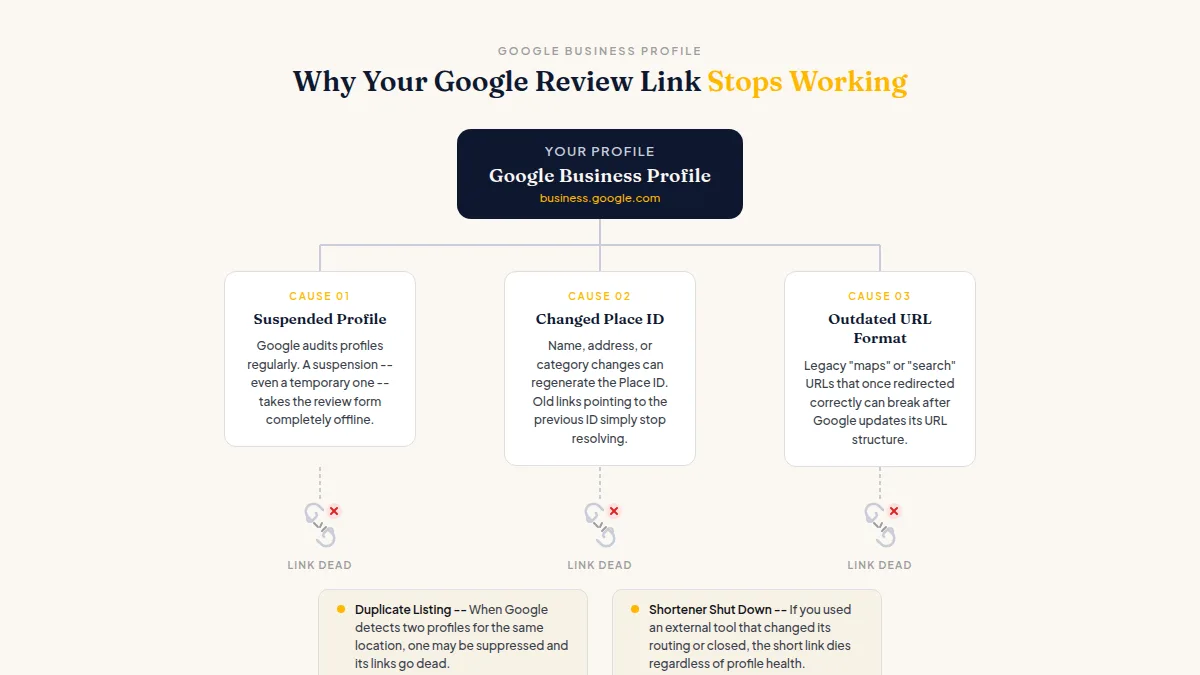
- Your Business Profile was suspended or flagged. Google audits profiles regularly. A suspension — even a temporary one — takes the review form completely offline.
- Your business name, address, or category changed. Google sometimes regenerates the Place ID (the unique identifier embedded in your link) when core listing data is updated. Old links pointing to the previous Place ID simply stop resolving.
- You're using an outdated URL format. Legacy "maps" or "search" URLs that once redirected correctly can break after Google updates its URL structure.
- A duplicate listing exists. When Google detects two profiles for the same location, one may be suppressed — and any links pointing to the suppressed listing go dead.
- The third-party shortener you used shut down. If you shortened your review link through an external tool that changed its routing or closed, the short link dies regardless of whether your Business Profile is perfectly healthy.
The link itself is rarely the problem — it's almost always the profile behind it.
Before you do anything else, go to business.google.com, log in, confirm your profile status shows "Published," and check for any red warning banners.
How to Get a Fresh Google Review Link Right Now
If your Google review link is not working, generating a new one from scratch takes about two minutes and gives you a clean URL that reflects your current profile state — not a cached or stale version from months ago.
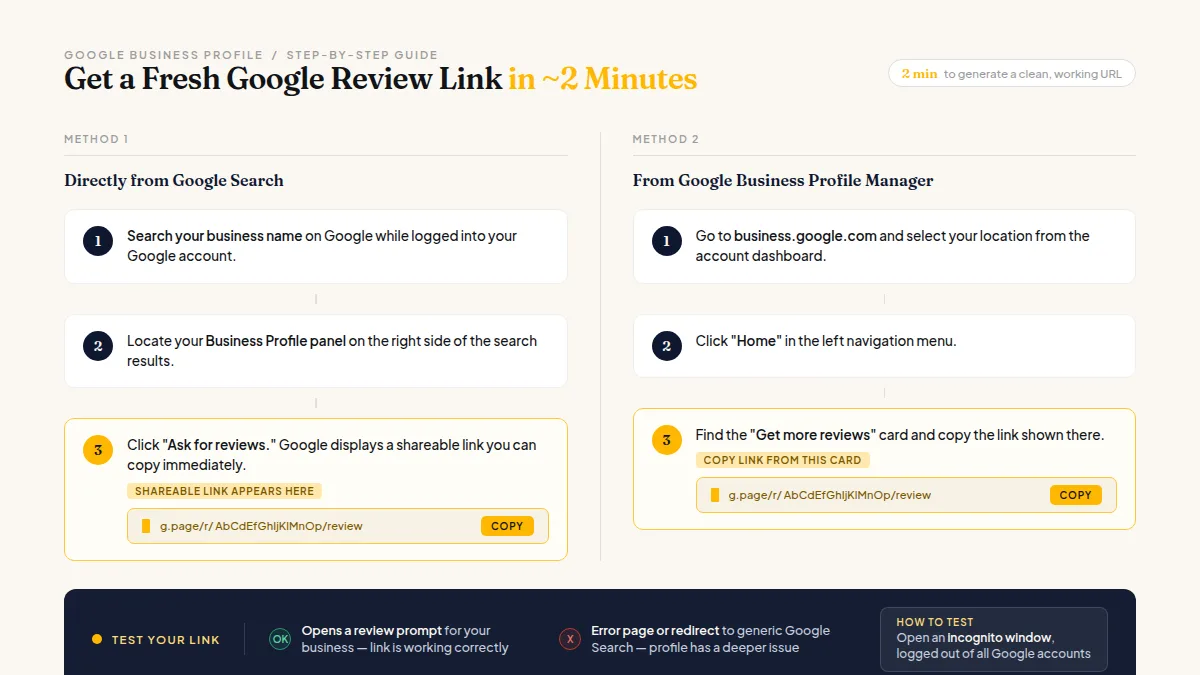
Method 1 — Directly from Google Search:
- Search your business name on Google while logged into your Google account.
- Locate your Business Profile panel on the right side of the results.
- Click "Ask for reviews." Google displays a shareable link you can copy immediately.
Method 2 — From Google Business Profile Manager:
- Go to business.google.com and select your location.
- Click "Home" in the left menu.
- Find the "Get more reviews" card and copy the link shown there.
Once you have the new link, test it in an incognito browser window while logged out of all Google accounts. A working link loads a review prompt for your business. An error page or a redirect to generic Google Search means your profile has a deeper issue — covered in the next section.
If you want step-by-step screenshots and alternate approaches for different account setups, the Google Reviews Link: How to Find & Share It guide covers every variation.
Do this faster
HiFiveStar asks happy customers at exactly the right moment — so more of them actually leave a review.
What to Do When the Link Works But Customers Still Can't Leave a Review
Sometimes the link opens correctly, but individual customers hit errors at submission. This is a separate problem — one that lives on Google's side, not yours. Common causes:
The customer's Google account is too new. Google applies trust filters that can silently block reviews from accounts created recently or with no prior review history.
The customer already left you a review. Google allows one review per person per business. A returning customer trying to add a second review, or update a previous one, will hit an error.
The customer isn't signed into Google. The review form requires a Google account. Customers on shared devices or using browsers with aggressive privacy settings sometimes can't complete the flow.
The review was posted, then removed. Google's spam filters occasionally remove legitimate reviews after submission. The customer sees their review as "submitted" and it never appears publicly. Neither you nor the customer can force reinstatement — Google's automated systems make that call, and there's no appeal path.
For customers who genuinely can't post, send them the direct link again and suggest they try on a different device or browser. A second attempt on mobile while signed into the Google app often succeeds where desktop didn't.
Fixing a Suspended or Flagged Profile
A suspension notice is the root cause of a broken Google review link — nothing will work until the profile is restored.
Soft suspension (profile still appears in search but carries a warning): Usually triggered by a guideline violation in your business name, category, or description. Edit the flagged field to comply with Google's guidelines, then request a review from within the Business Profile dashboard. Most soft suspensions resolve within a few business days.
Hard suspension (profile disappears entirely from search): Requires a formal reinstatement request through Google's Business Profile support. Be prepared to verify your business address and provide ownership documentation. Response times vary — expect anywhere from several days to a couple of weeks.
While you wait for reinstatement, don't distribute new links. They won't work, and sending broken links to customers erodes trust faster than having no link at all.
For a detailed breakdown of how Google review link URLs are structured — useful before you rebuild your sharing strategy — The Ultimate Guide to Getting Your Google Review Link in 2025 covers every format.
Keeping Your Review Link from Breaking Again
Once you have a working link, a few consistent habits prevent this from becoming a recurring problem.
Store your link in one central place. Put the canonical URL in a shared doc or your email signature template. When you need to update it, you change it once, and every downstream use updates automatically.
Test the link after every Business Profile edit. Changing your business name, address, phone number, or primary category can affect your Place ID. A 30-second incognito test after any profile update catches problems before customers do.
Send your link through a review-request tool, not as a bare URL in a text message. Bare links get flagged as spam by SMS carriers and some email clients. Tools like HiFiveStar send properly formatted review requests via SMS or email, protecting deliverability and letting you see how many requests you've sent and how many new reviews came in.
Don't rely on Google alone. If your Google profile goes down temporarily, active profiles on Facebook, Yelp, or industry-specific platforms mean customers can still leave feedback while you work through the Google issue. A review management inbox that connects multiple platforms keeps you visible even when one channel has problems.
The practical takeaway: generate a fresh link today, test it logged-out in incognito, and store it somewhere central. That single step catches the majority of broken-link situations before any customer ever sees them.
Frequently Asked Questions
Why does my Google review link say "page not found"?
This usually means your Google Business Profile is suspended, the Place ID changed after a profile update, or you're using an outdated URL format. Generate a new link directly from business.google.com and test it in an incognito window.
How do I fix a broken Google review link without losing my existing reviews?
Generating a new link doesn't affect your existing reviews — it just creates a fresh URL pointing to your current profile. Your review history stays intact on your Business Profile regardless of which link you share.
Why can some customers leave a review but others can't?
Google applies trust filters based on account age, activity history, and device. New accounts or accounts with no prior Google review history are sometimes blocked by Google's spam detection, even if the review itself is legitimate.
How often should I update or re-check my Google review link?
Check it any time you edit your Business Profile — especially after changing your business name, address, or category. Also run a quick incognito test every couple of months as routine maintenance.
Can I use a short link or QR code for my Google review link?
Yes, but generate the short link or QR code only after confirming the destination URL is working. If you need to replace the underlying link later, you'll need to regenerate the QR code — most QR codes point to a fixed destination and can't be edited after creation.
What should I tell customers who get an error when they try to review me?
Ask them to try again on a different device or browser while signed into their Google account. If the problem persists, it's likely a Google-side trust filter. There's no workaround you can offer, but it doesn't affect your profile's standing in any way.
Tired of chasing reviews by hand? Get started with HiFiveStar sends the review request for you and keeps the link working, so customers land on the right page every time.

Ready to Take Control of Your Online Reputation?
Join thousands of local businesses using HiFiveStar to get more reviews and grow faster.